
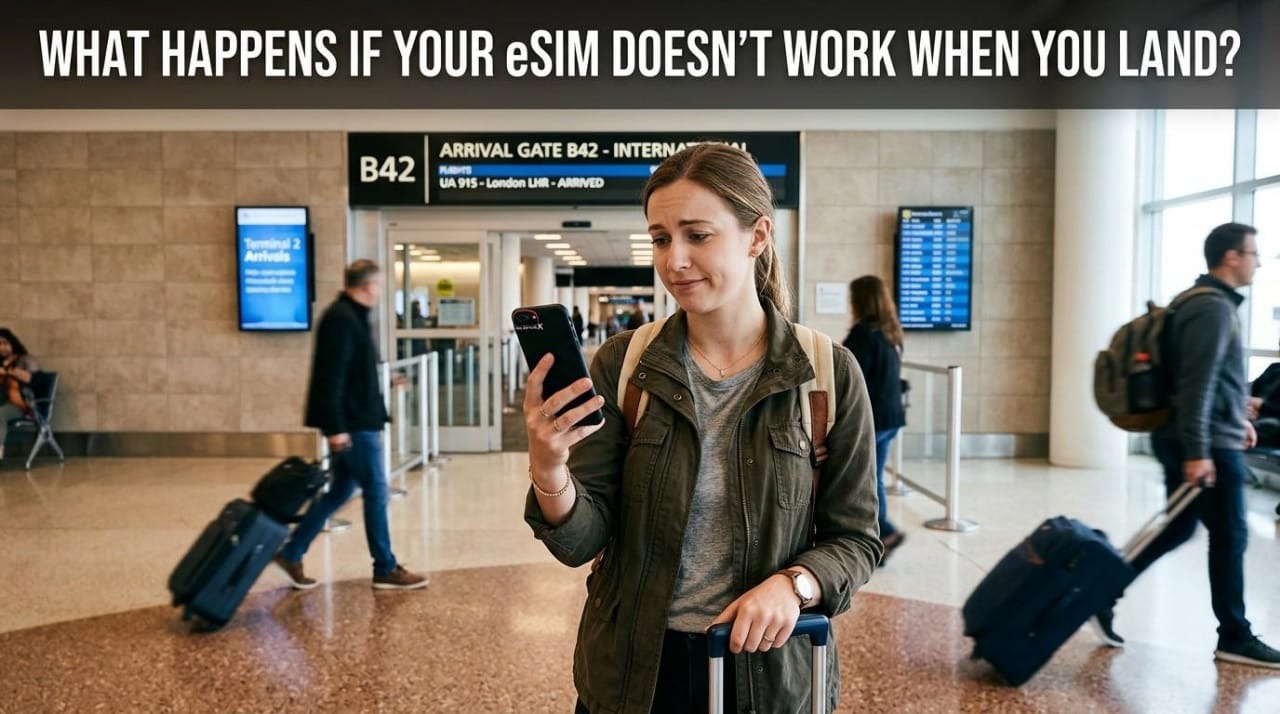
If your eSIM doesn’t work when you land, don’t panic. It’s usually a quick fix. Toggle airplane mode on and off, turn on data roaming, manually select your network, and give it 5-10 minutes to connect. If it still doesn’t work, airport Wi-Fi or your hotel’s Wi-Fi can cover you while you troubleshoot or contact your eSIM provider’s support.
Landing in a new country and seeing “No Service” pop up on your screen has to be one of the most stressful moments in modern travel. You need a map, a rideshare app, or just a way to let someone know you’ve landed safely, and suddenly none of it works. Take a breath. This happens to almost every traveler at some point, and most of the time it’s nothing serious. At Luxxesims, our support team hears from travelers dealing with exactly this every day, and the fix is almost always one of a handful of simple things. Here’s exactly why it happens, what to do about it step by step, and how to make sure you don’t run into it again on your next trip.
The most common reasons are that data roaming is switched off, the eSIM wasn’t activated before you left, the plan doesn’t cover the country you landed in, or your phone hasn’t picked a network automatically yet.
A travel eSIM not working on arrival almost always comes down to one of these:
Check the signal bar and network name at the top of your screen. If it shows your provider’s network name but no internet, it’s likely just connecting. If it shows “No Service” or “Searching,” that’s a real connection issue.
Here’s a simple way to tell the difference:
| What you see | What it means |
| Network name shown, no data icon | Still connecting, just wait 5-10 minutes |
| “No Service” | Not connected to any network |
| “Searching…” | Phone is looking for a signal |
| Data icon shown, pages won’t load | Connected, but a settings issue is blocking data |
If you’re in that first row, patience solves it every time. Anywhere else, and it’s worth moving straight to the troubleshooting steps below.
Toggle airplane mode, turn on data roaming, manually pick the network, check your APN settings, and restart your phone, in that order.
This forces your phone to search for networks all over again. Turn airplane mode on, wait about 15 seconds, then turn it off. Sounds too simple, but this alone fixes a large share of “eSIM not working when landed” cases.
Head to Settings > Mobile/Cellular Data and make sure your eSIM’s data roaming toggle is switched on. This is by far the most common reason a travel eSIM appears broken. It isn’t broken at all, roaming is just switched off.
Instead of leaving network selection on automatic, go into your eSIM’s network settings and manually choose a partner network. This tends to help a lot in border regions or areas with several weak signals competing.
Your eSIM provider should have sent you APN details in a setup email or through their app. If you’re using Luxxesims, these details are also available right inside the app under your eSIM’s plan details, so you don’t have to dig through old emails. If your data still won’t load after roaming is on, entering these manually usually clears it up.
It’s old advice for a reason, it works. A restart clears out any stuck connection processes left over from your flight.
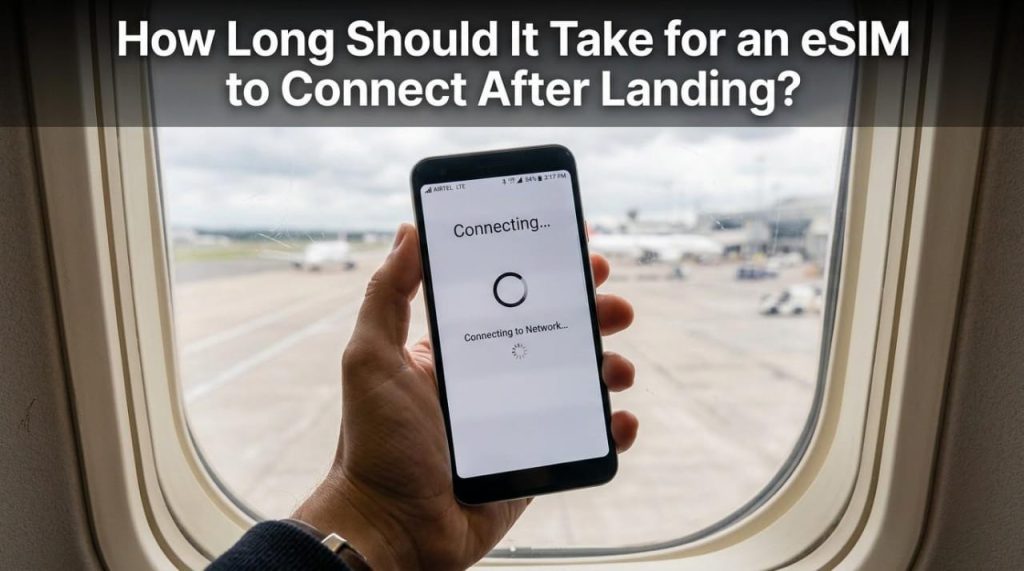
Most eSIMs connect within 1-10 minutes of landing, as long as they were activated before departure and data roaming is on. If it’s been longer than 15-20 minutes with no signal, something needs troubleshooting.
How fast it connects depends on how busy the local network is (airports get congested fast) and how far you are from a tower. If you activated your eSIM correctly and it still hasn’t connected after 20 minutes, it’s time to work through the troubleshooting steps above instead of just waiting it out.
Airport Wi-Fi, your hotel’s Wi-Fi, and Wi-Fi calling apps like WhatsApp or FaceTime can keep you connected while you sort out your eSIM.
If you need internet right now and troubleshooting isn’t fixing things fast enough:
These are stop gaps, not long term fixes, but they’ll buy you enough time to sort things out without the stress.
No. Your eSIM adds a separate travel data line, it doesn’t replace or affect your home number. Calls and texts to your home number, along with OTPs, still arrive as normal as long as your home SIM or line stays active.
This is one of the biggest fears travelers have, and it really is based on a misunderstanding. A travel eSIM is typically a data only line that sits alongside your regular number, not instead of it. Your home number just keeps working like nothing changed, the eSIM is only there to give you local data without the roaming charges.
Yes, but only turn on roaming for your eSIM line, not your home SIM, unless you’re fine paying your home carrier’s roaming rates. Most phones let you manage roaming separately for each line. Make sure roaming is on for the eSIM, that’s how it connects to a local network in the first place, and off for your home line so you don’t get hit with international roaming fees by accident.
The core fix is the same across all phones: toggle airplane mode, enable roaming, check APN. The exact menu paths just differ a bit by brand.
If your phone is carrier locked, that’s a separate issue entirely. A carrier locked phone can block eSIMs from other providers altogether, and no amount of toggling roaming will fix that. Check with your carrier if you’re not sure whether your phone is unlocked.
Most reputable eSIM providers offer support and, in genuine activation failure cases, a replacement or refund, but policies vary, so it’s worth checking before you travel.
This is really where choosing your provider matters. Luxxesims, for example, offers a free welcome eSIM for first time users, so you can test the whole activation and connection process risk free before relying on a paid plan for your actual trip. If an eSIM genuinely fails to activate because of a provider side issue, most legitimate companies will help you sort it out or issue a replacement. It’s just worth checking a provider’s support options before you fly, not after you’ve already landed and things have gone sideways.
Install and activate your eSIM while you still have Wi-Fi, ideally 24-48 hours before departure, and confirm it shows “connected” before you board.
A few small habits prevent almost every “eSIM not working when landed” problem:
Use airport or venue Wi-Fi to call for help via a Wi-Fi calling app, and remember that in most countries you can still dial local emergency numbers even without an active data or cellular plan.
In a genuine emergency, most phones can still reach local emergency services even without a working SIM or eSIM, since emergency calls don’t require an active plan at all. For anything less urgent but still important, find the nearest available Wi-Fi and use a calling app to reach whoever you need to.
Should I delete and reinstall my eSIM if troubleshooting doesn’t fix it?
Only as a last method, since most eSIMs can’t be reinstalled from the same QR code once activated. Try every troubleshooting step first and contact your provider’s support before removing the profile, so you don’t end up with no eSIM at all.
Will restarting my phone delete my installed eSIM?
No, a restart only refreshes your phone’s connection processes and has no effect on the eSIM profile itself. Your eSIM stays installed exactly as it was before you restarted.
Can I use two eSIMs at once if one isn’t connecting?
Most modern phones support having two eSIMs (or an eSIM plus a physical SIM) active at the same time, so a second eSIM can work as a backup. Just check your phone’s dual SIM settings to make sure both are enabled and you’re not accidentally routing data through the wrong one.
Is it safe to use airport Wi-Fi while I wait for my eSIM to connect?
Public Wi-Fi is generally fine for quick things like checking a map or messaging someone, but it’s best to avoid logging into banking apps or entering sensitive details on it. A VPN adds an extra layer of protection if you plan to use public Wi-Fi for anything more than the basics.
How do I contact my eSIM provider if I have no internet at all?
Most providers list a support email or number on your purchase confirmation, which you can access by asking to briefly use someone else’s phone or the airport Wi-Fi. Keeping a screenshot of your provider’s contact details saved before you travel means you’re never fully stuck.
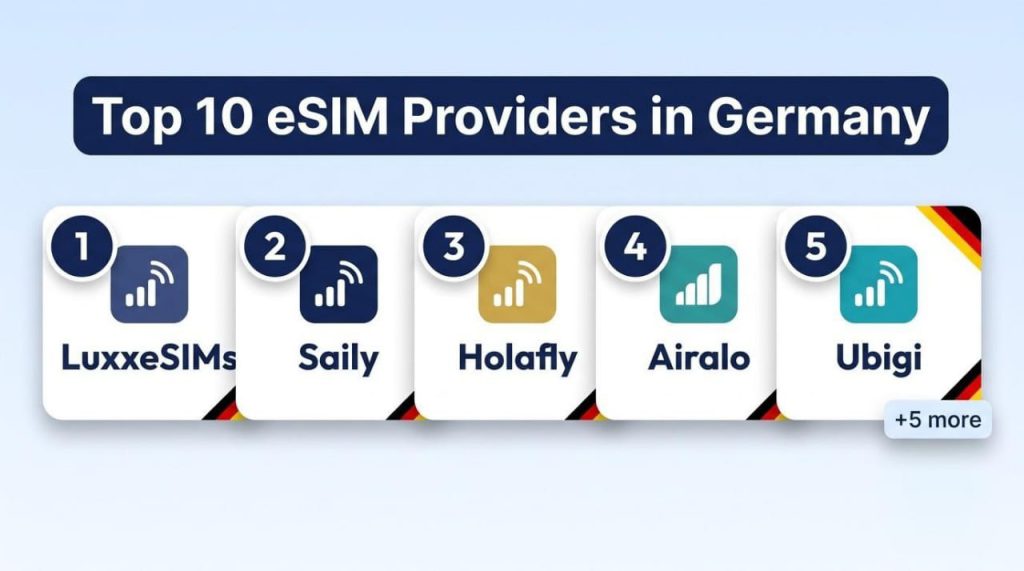
The top 10 eSIM providers in Germany for tourists and travelers in…

The best eSIM for France depends on how long you’re staying and…
If your eSIM doesn’t work when you land, don’t panic. It’s usually…
You buy a digital data plan online, scan a QR code at home, and turn it on when you land....
If you’re flying into JFK and you haven’t sorted your mobile data yet, stop what you’re doing. Seriously. Roaming charges...
If you’re planning a trip abroad, using an eSIM for Europe is honestly one of the easiest ways to stay...
Your cookie choices
We use cookies to keep the shop and checkout working. With your permission, we also use analytics cookies to see how the site is used and marketing cookies to measure our Google and Meta adverts. Nothing optional is switched on unless you choose Accept. You can change your mind at any time from the Cookie settings link at the bottom of every page. Read our Cookie Policy.